
Turning your track data into an AI race engineer
Most AI telemetry tools read one lap. Connect an assistant to your whole logbook — sessions, setups, tire wear, costs — and ask the questions a single trace can't answer.
“AI analyzes your telemetry” usually means one thing: a model looks at one lap trace and comments on it. Brake later here, earlier apex there. That can be useful — but it’s a narrow slice of what you actually know about your own driving, because a season is more than a trace. It’s which setup was on the car, how old the tires were, what the weather did, and what all of that looked like three track days ago.
The interesting questions live across that history, and they’re the ones a single-session analyzer structurally cannot answer:
- Which setup did I run on my fastest lap at this track?
- How many laps are on this tire set, and what did the last tread measurement say?
- Compare my best laps from May and July — where does the time move?
- What did I change between the two sessions where my times differ most?
Those aren’t telemetry questions. They’re logbook questions — and if your logbook is structured data instead of a notes app, an AI assistant can answer them in plain language.
What “season context” actually means
ApexLog is a track day logbook: sessions and laps imported from RaceChrono or RaceBox recordings, plus the things a recorder never sees — setup snapshots (tires, pressures, alignment, brakes), wear-tracked components with laps and tread depth per set, what a set cost, notes, weather, photos. OBD channels like RPM and fuel level ride along in the import when the phone was paired to the car.
An assistant with access to that data isn’t guessing from a GPS line. When you ask about your fastest session, it can pull the actual setup sheet from that day. When you ask about a tire set, it gets the real install date, the laps since, and the measurements you logged. The recording captures the session; the logbook keeps the season — and the assistant reads both.
One design rule worth stating: the assistant reports what was recorded. It will give you the sector where the time moved and the setup difference between two days — it won’t manufacture a story about which one caused the other. The data usually can’t support that claim, so neither does the answer.
A real conversation
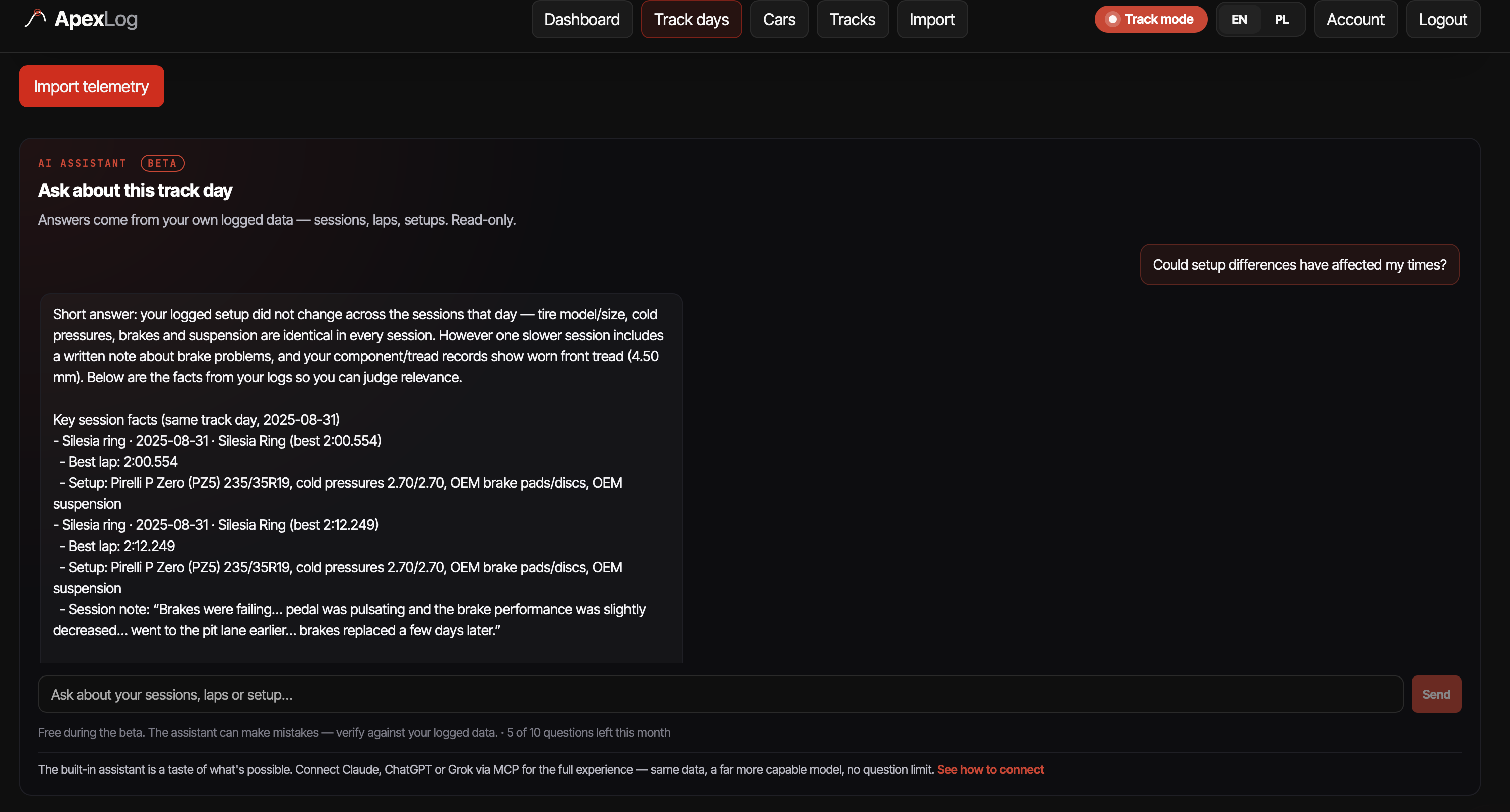
Me: Could setup differences have affected my times?
Assistant: Short answer: your logged setup did not change across the sessions that day — tire model/size, cold pressures, brakes and suspension are identical in every session. However one slower session includes a written note about brake problems, and your component/tread records show worn front tread (4.50 mm). Below are the facts from your logs so you can judge relevance.
(…followed by the per-session facts: the same Pirellis, cold pressures and OEM brakes listed for both sessions, the 2:00.554 vs 2:12.249 best laps, and the session note — “Brakes were failing… pedal was pulsating… went to the pit lane earlier… brakes replaced a few days later.”)
That answer is three tools working together: the day’s session list, the full session detail with the setup snapshot and notes, and the vehicle’s component records with tread measurements. It’s also the design rule from earlier doing its job — asked a causal question, the assistant checks the setups, finds them identical, surfaces the brake note and the tread log, and hands the judgment back. No invented story.
Two ways to use it
In the app. ApexLog now ships a built-in assistant, on the track day page. It can list your vehicles and sessions, read a full session — laps, setup snapshot, wear state, conditions, notes — and compare two laps sector by sector (virtual, equal-distance GPS sectors — not official timing). Read-only, scoped to your own data, running on a hosted model in the EU. It’s free during the beta, capped at 10 questions a month.
That cap is not a dark pattern — it’s the point. The built-in chat is a sample, so you can see what your data sounds like when you can talk to it, without connecting anything.
Your own AI, via MCP. The full version is bring-your-own-assistant:
ApexLog exposes an MCP connector that plugs into Claude,
ChatGPT or Grok. In ChatGPT, ApexLog now has an
official listing in the Plugin Directory
(added 2026-07-10) — install it in one click, no
developer mode. In Claude or Grok, add https://api.apexlog.io/mcp as a
custom connector. Either way: sign in, grant read-only consent — from then
on your assistant has seven tools: vehicles, sessions, full session detail, whole
track days, the GPS telemetry trace of
any lap, per-sector lap comparison, and your wear photos. No question limit
on ApexLog’s side; the model and its rate limits are yours. And because
it’s your assistant, the analysis quality scales with the model you already
pay for — ApexLog provides the data, your AI does the thinking.
The step-by-step for each client is on the connect page, including screenshots of the consent flow. Access is revocable any time from your account settings, and there are no write tools — nothing can be changed or deleted through the connector.
Access reality, per client
The AI vendors set their own access rules (as of July 2026):
- ChatGPT — the Plugin Directory is visible on all plans, and ApexLog is among the plugins available on all plans, including Free; availability can also depend on your region and workspace settings. Since 2026-07-10 ApexLog has an official listing in the Plugin Directory, so the old path (paid plan + developer mode + pasting the URL) is gone — find ApexLog in the directory and click Connect. (Updated 2026-07-10; this section originally listed ChatGPT as the most locked-down client.)
- Claude — works on every plan, including free; free accounts get one custom connector.
- Grok — paid accounts only, under grok.com/connectors.
- Consumer Gemini — no custom MCP connectors yet; the same URL will work when that changes.
These are their gates, not ApexLog’s. During the ApexLog beta the connector itself is free on every account.
Try it on your own season
If you record with RaceChrono or RaceBox, the pipeline is short: import the session files, and the questions become askable — first ten in the app, unlimited through your own assistant.
Import a session and ask where the time went →
Free during beta. The RaceChrono import page covers
.rcz and CSV v3 uploads, the RaceBox page covers the
CSV export — and everything either one brings in becomes something you can
ask about.