
Talk to your track data in your AI assistant
Connect ApexLog to your assistant and it can read your sessions, laps, telemetry, setups and tire wear — and answer questions about them in chat. Read-only, under your account, revocable any time. In ChatGPT, ApexLog has an official listing in the Plugin Directory — one click, no developer mode. Claude and Grok connect via the MCP connector below.
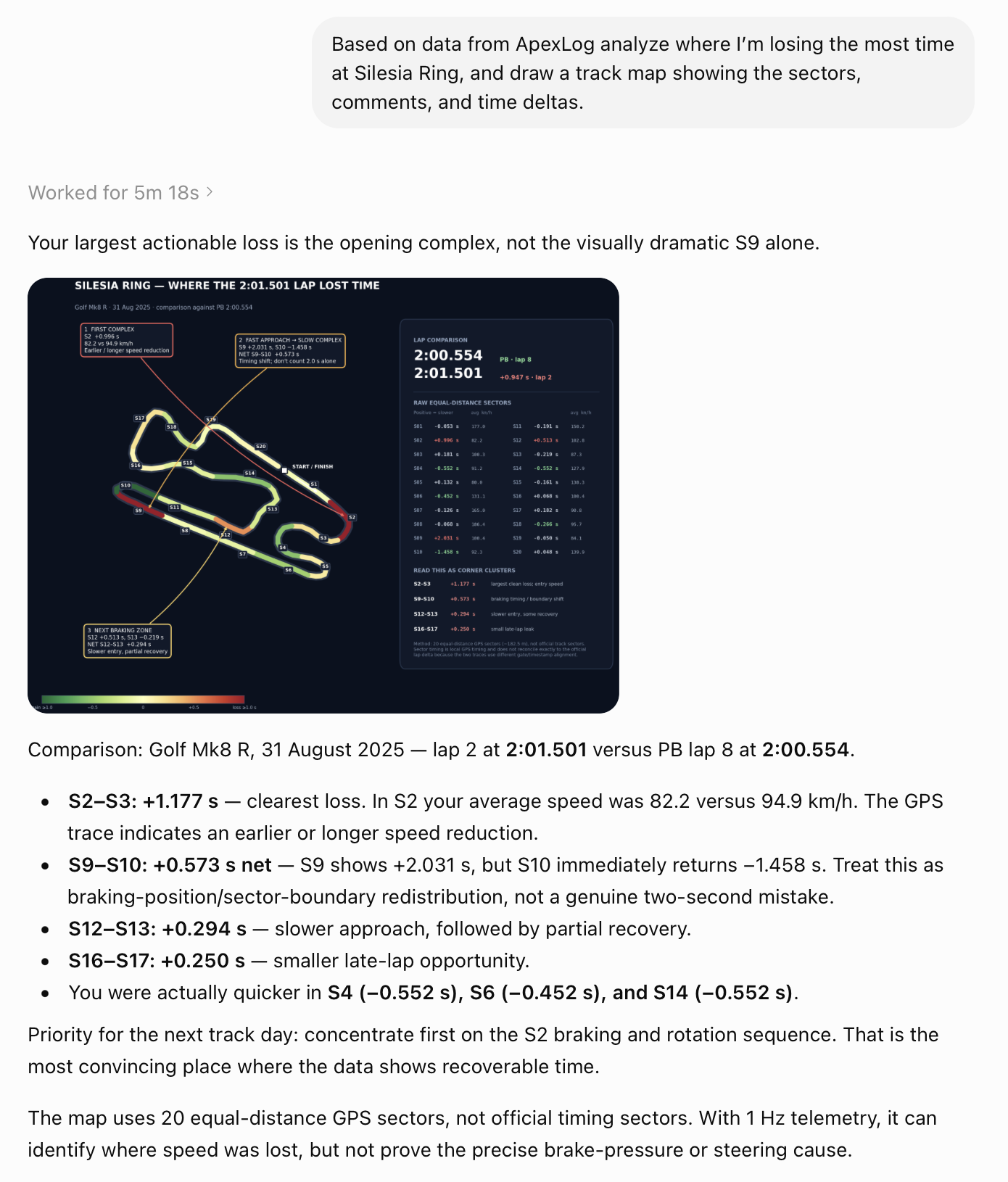
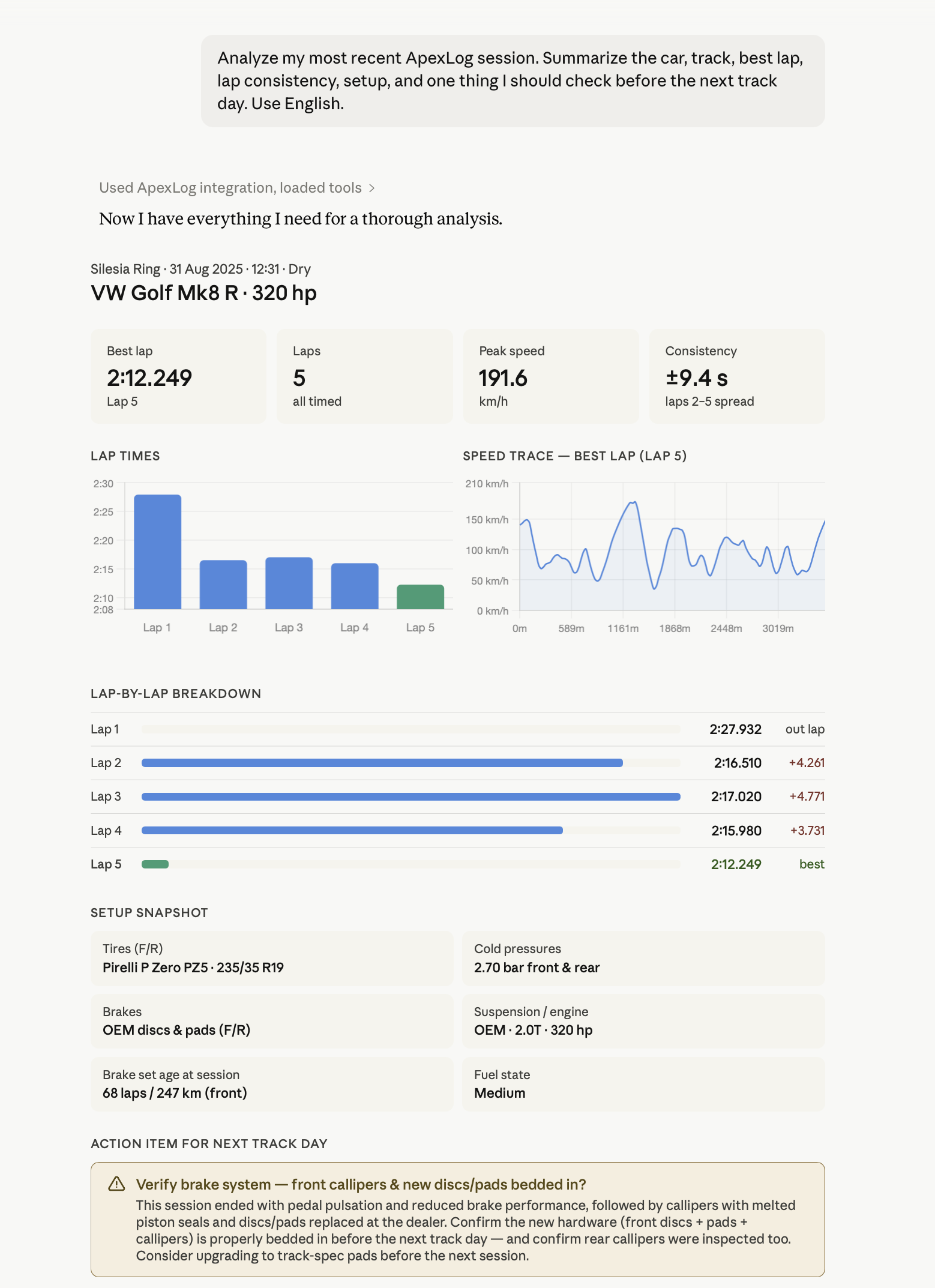
Things you can ask
- ✓“Compare the best laps of my two most recent sessions at Silesia Ring. Which sectors differ?”
- ✓“How many laps are on my front tires, and what was the last tread depth measurement?”
- ✓“What setup did I run in my fastest session this season?”
- ✓“Show me the photos of my brake pads and describe what you see.”
- ✓“List my sessions from May and the weather for each.”
The assistant answers from your logged data. How good the analysis is depends on the model you use — ApexLog provides the data, your AI subscription does the thinking.
What the connector can read
Seven read-only tools. This is the complete list — there is nothing else, and nothing can be changed or deleted through the connector.
Vehicles
Your cars with track mileage, the most recent setup snapshot (tires, pressures, alignment, brakes) and installed wear-tracked components with km/laps and tread measurements.
Sessions
Session list with date, track, vehicle, lap count, best lap and weather — filterable by track, car and date range.
Session detail
All laps with times, the full setup snapshot, conditions, wear state of installed tire/brake sets, notes and linked onboard video links.
Track day
A whole track day in one call: date, track, organizer, day-level weather and notes, onboard videos and a per-session summary with lap counts and best laps.
Lap telemetry
The GPS trace of a lap, downsampled by default; full-resolution samples with g-forces, RPM and altitude on request.
Lap comparison
A per-sector time delta between any two laps. Sectors are equal-distance GPS splits computed by ApexLog — not official timing sectors.
Photos
Wear and condition photos attached to component installations, sessions and setups, served as viewable images.
Connect in ChatGPT
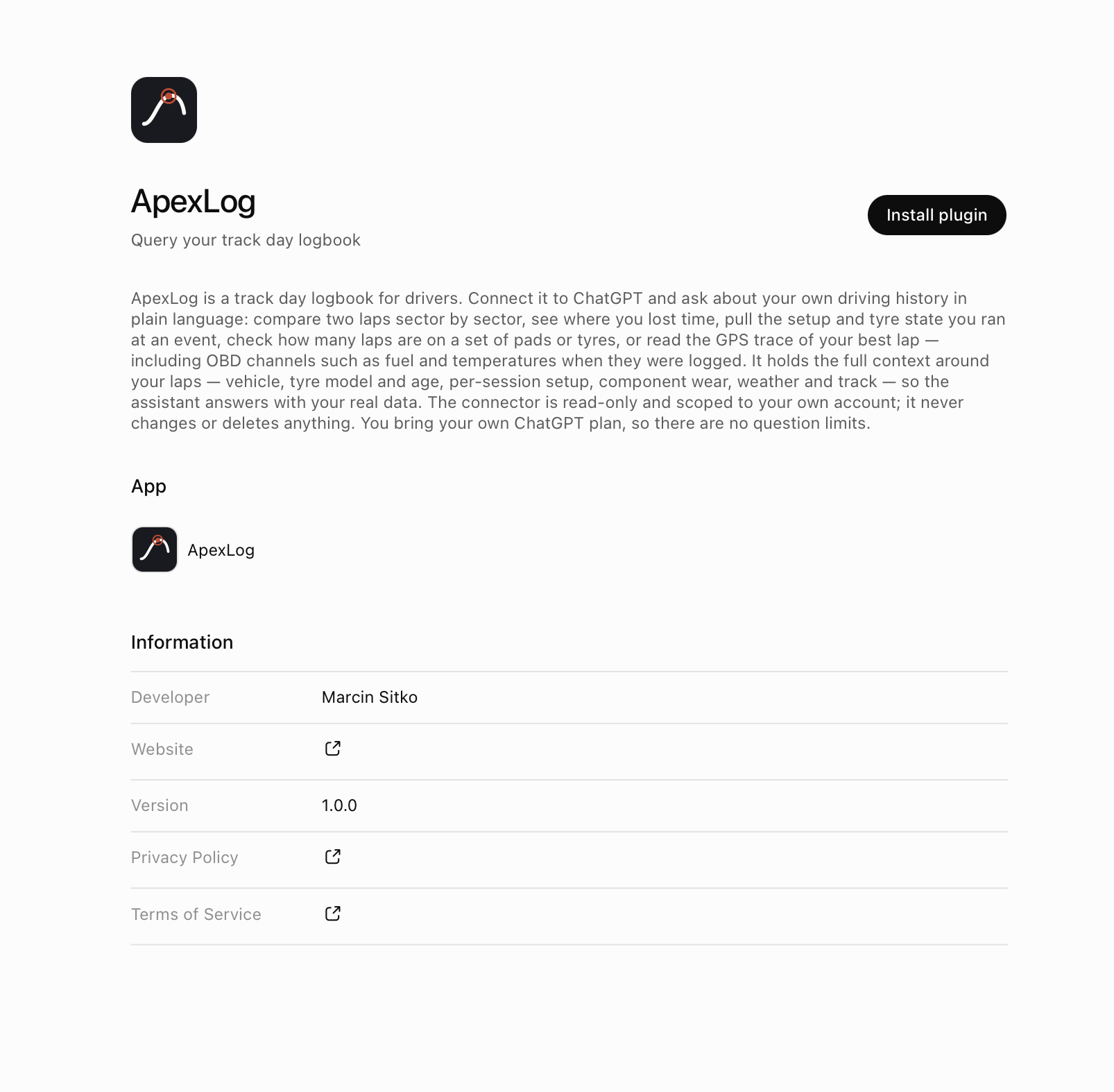
ApexLog has an official listing in ChatGPT's Plugin Directory — installed in one click. No developer mode, no pasting URLs.
- 1
Open the ApexLog listing in ChatGPT — or search for “ApexLog” in the Plugin Directory.
- 2
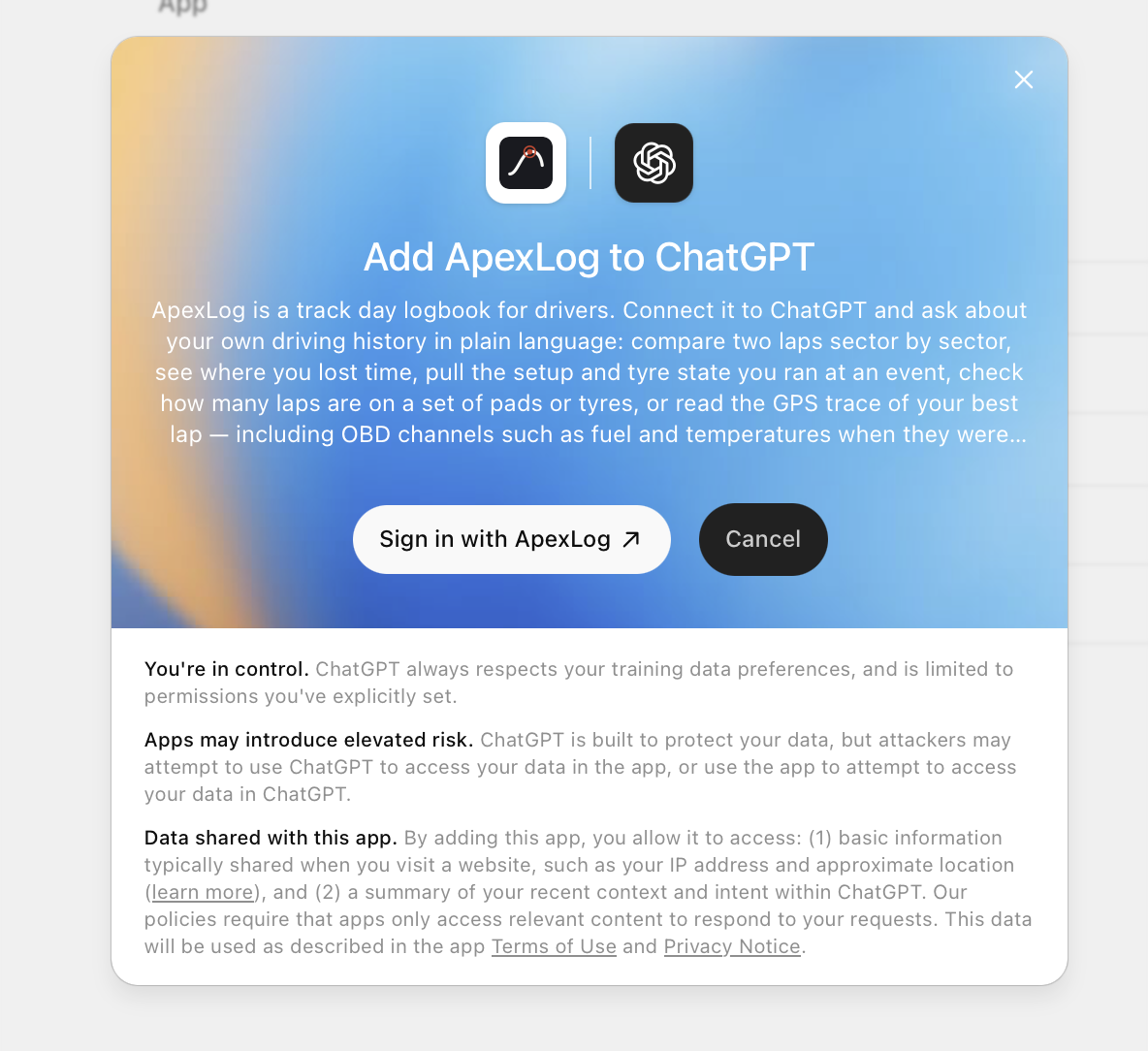
Click Install plugin, then Sign in with ApexLog.
- 3
Sign in and press “Allow access” on the consent screen.
- 4
Ask away in any chat — ChatGPT pulls your ApexLog data when the question calls for it.
The Plugin Directory is visible on all ChatGPT plans, and OpenAI makes select plugins — ApexLog among them — available on all plans, including Free. Availability can also depend on your region and workspace settings; on Enterprise/Edu workspaces an admin has to enable plugins first. These are OpenAI's rules as of July 2026.
Connect in Claude (web or desktop)
MCP connector URL (Claude & Grok)
https://api.apexlog.io/mcp- 1
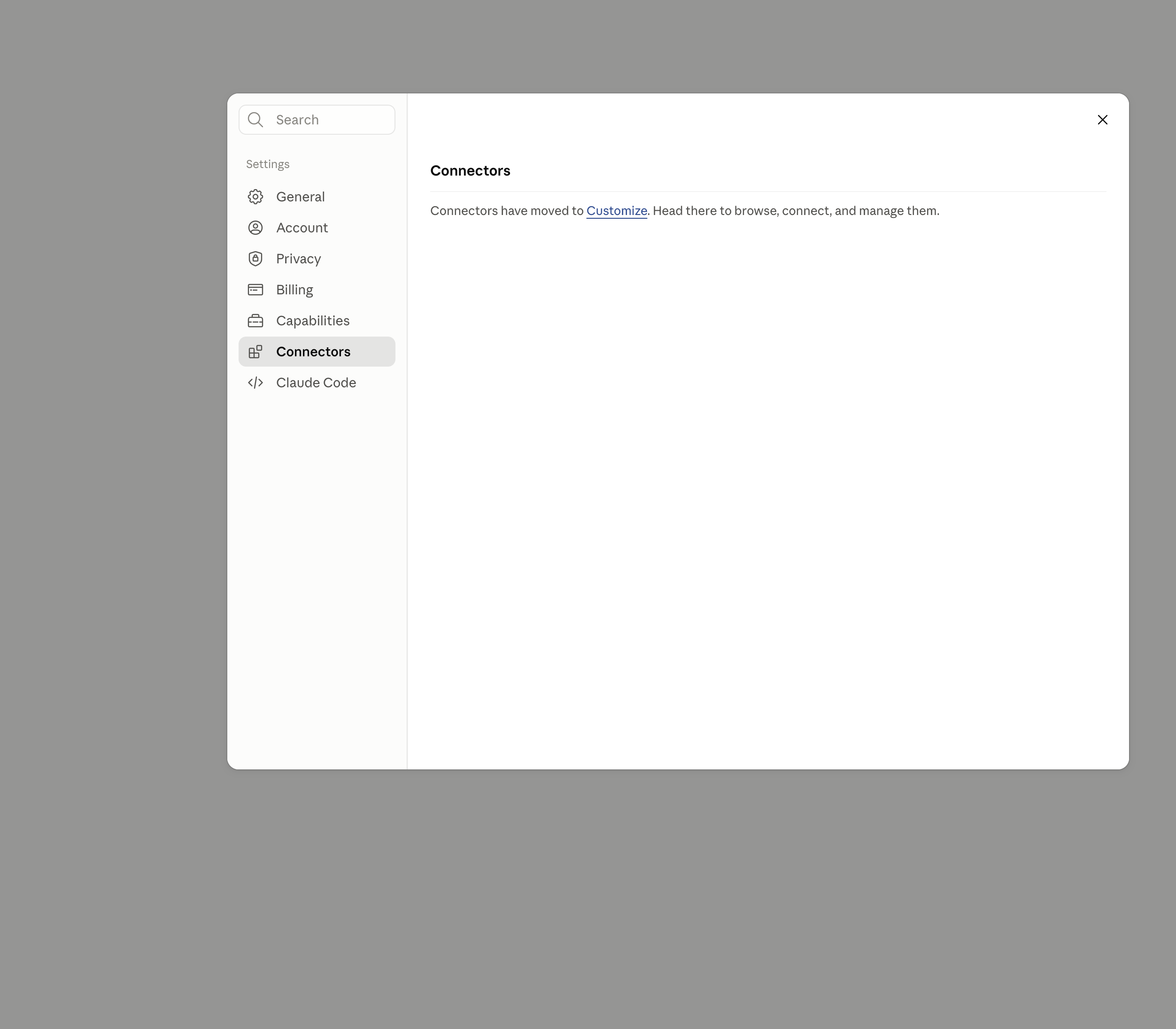
Open claude.ai → Settings → Connectors → Customize. If Claude opens Customize directly, start there.
- 2
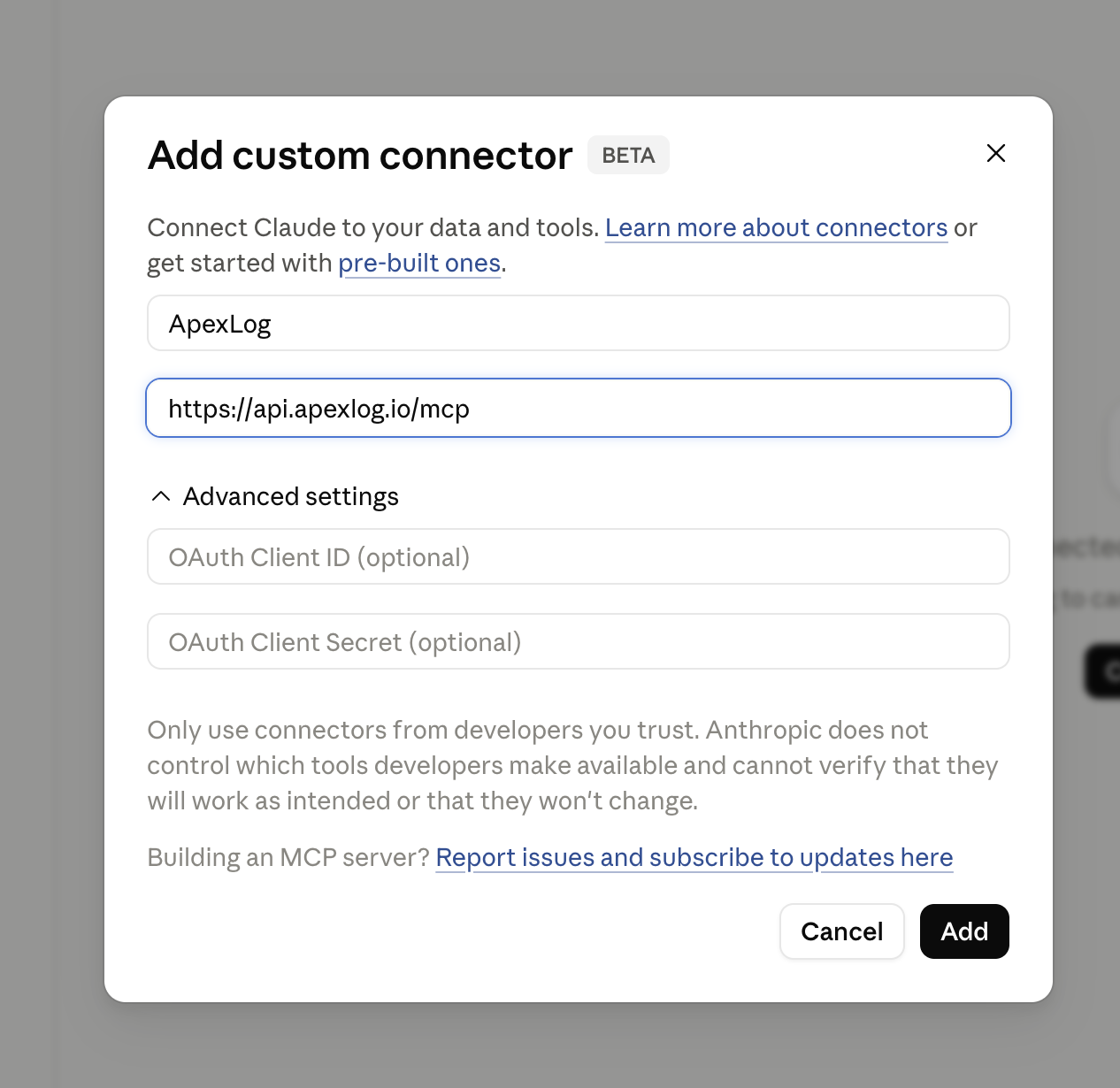
Choose Add custom connector, name it ApexLog, paste https://api.apexlog.io/mcp and confirm.
- 3
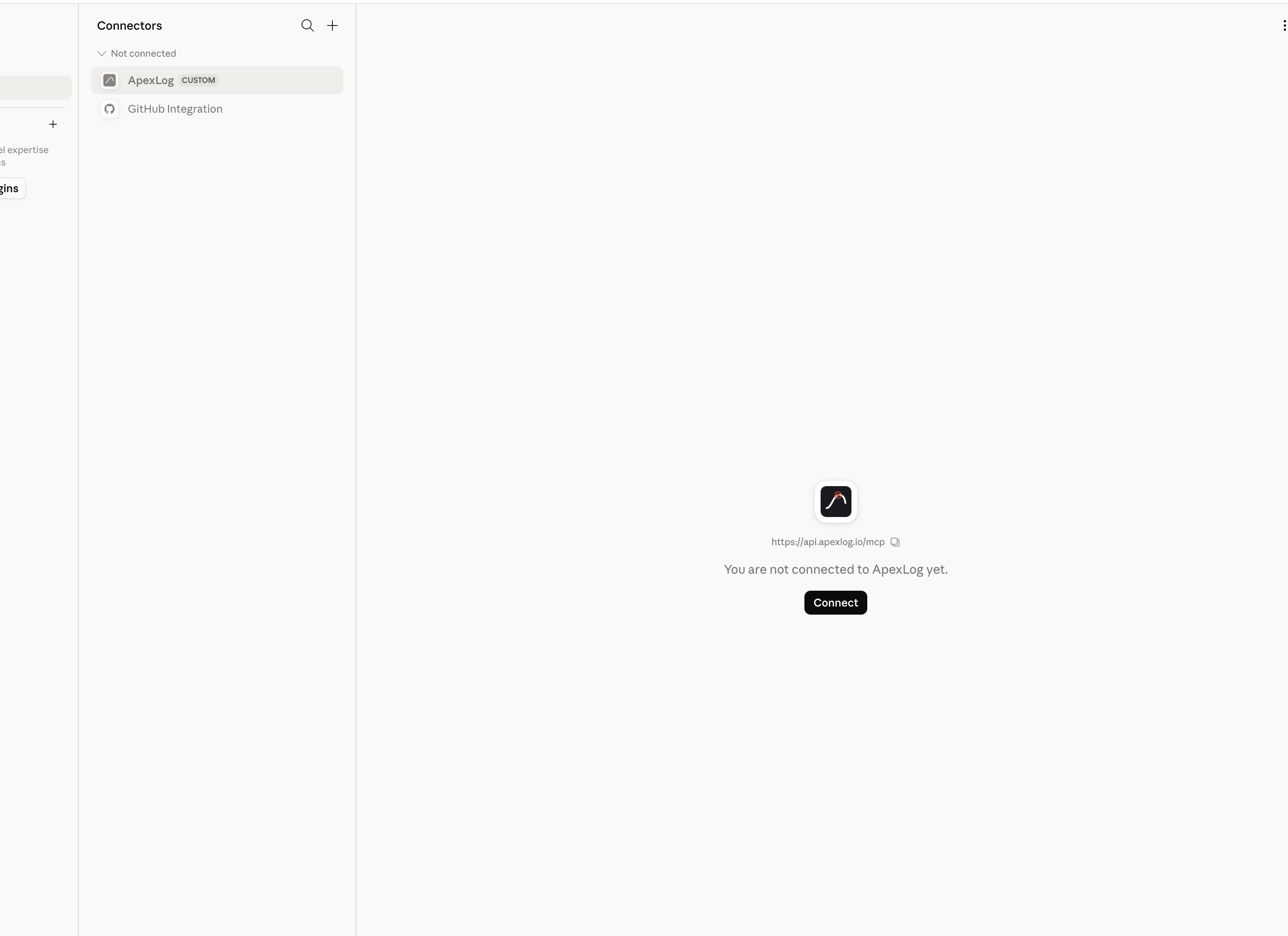
Select ApexLog under Not connected and click Connect.
- 4
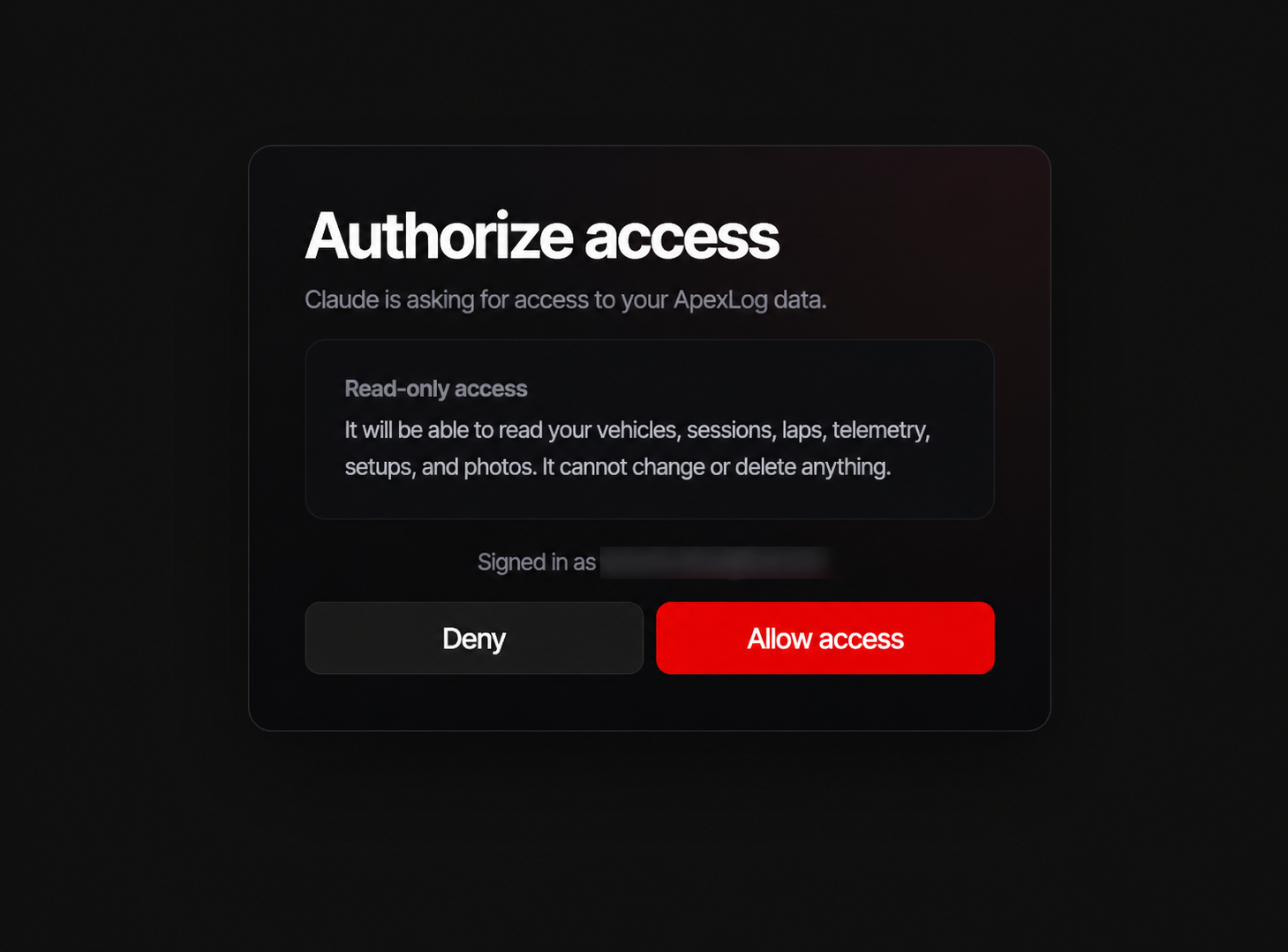
Your browser opens the ApexLog login. Sign in and press “Allow access” on the consent screen.
- 5
Back in Claude, enable the ApexLog connector in the tools menu of a chat and ask away.
Custom connectors are available on all Claude plans, including the free plan (free accounts are limited to one custom connector). See Claude's connector guide.
Other AI clients
Grok
Requires a paid Grok account. Go to grok.com/connectors → New Connector → Custom and paste https://api.apexlog.io/mcp.
Gemini
The consumer Gemini app does not support custom MCP connectors yet (as of June 2026). When it does, the same URL will work.
Disconnecting
Open app.apexlog.io/account → Connected apps and revoke the client. Its access stops at the next request — no grace period. You can also remove the connector on the AI client's side; revoking in ApexLog works even if you no longer have access to the client.
FAQ
- Who does the AI analysis?
- For the connector: your AI subscription. ApexLog serves your data to the assistant you already use, under a consent you grant and can revoke — the analysis happens in your Claude, ChatGPT or Grok, which is why the connector has no question limits on ApexLog's side. Separately, the app also ships a built-in assistant on a hosted model (free during the beta, 10 questions a month) as a taste of the same idea — the connector is the full version.
- Can the assistant change or delete my data?
- No. The connector is read-only by design — the OAuth scope only permits reading, and there are no write tools.
- What happens to my data privacy-wise?
- The connector exposes your data only to a client you explicitly authorize, and only your own data — every tool is scoped to your account. What the AI provider does with the conversation afterwards is governed by your plan and settings with them. ApexLog does not use your data to train anything.
- Are the sector times official?
- No. Lap comparisons use equal-distance sectors computed from the GPS trace, and the tool says so in its output. They are consistent between the two laps being compared, but they are not timing-loop sectors.
- Does it cost anything?
- The connector is part of the Pro plan and is free for everyone during the beta. See pricing.
- Which AI plan do I need?
- ChatGPT: the Plugin Directory is visible on all plans, and ApexLog is among the plugins available on all plans including Free — no developer mode needed; availability can also depend on region and workspace settings. Claude: any plan, including free (one custom connector on free). Grok: paid plans only. Consumer Gemini: not supported yet. These are the AI vendors' rules as of July 2026, not ApexLog's.
- Something stopped working — what do I do?
- Revoke the client under Connected apps, remove the connector in the AI client, and add it again. If it persists, email [email protected].