
RaceBox Mini for track days: getting more from your data
What the RaceBox Mini records at a track day, how to export the CSV, and how to turn one session into a season-long logbook with lap times, telemetry and setup history.
You get back to the paddock, pull the RaceBox Mini off the windscreen, and open the app. There are your laps, your best time, a track map. The capture worked. Now what?
If you run one car and do a couple of days a year, the answer is probably “nothing” — glance at the best lap, screenshot it, move on. But once you’re doing this across a season, the hard question stops being where are my laps — RaceBox keeps those — and becomes what was I running when I set them. Which tires, at what pressures, on which pads, the day you finally went quick at your home circuit. This post is about what the Mini records, what its own cloud does well, and where a season-shaped logbook picks up.
It assumes you already record. If you’re still choosing between a RaceBox and a phone running RaceChrono, that’s a different question — I get to it at the end.
What the RaceBox Mini actually records
The Mini is a dedicated GNSS logger, and that’s its whole advantage over a phone strapped to the dash: a proper multi-constellation receiver sampling fast enough to draw a clean racing line and time laps consistently. On a track day the channels that matter come off it as:
- Position — latitude and longitude, the raw material for the track map and the racing line.
- Speed — your speed trace around the lap.
- Altitude — elevation, useful on circuits with real elevation change.
- G-force — longitudinal, lateral and vertical (X/Y/Z), the accelerometer channels that show braking and cornering load.
- Lap numbers — once you’ve set a start/finish line, the Mini tags each sample with the lap it belongs to, which is what turns a stream of GPS points into timed laps.
That’s a GPS-plus-motion picture of the car on track. What the Mini doesn’t record is anything from the engine — RPM, coolant temp, fuel level. That data comes over OBD-II from a separate adapter, and it’s a topic of its own; this post stays on what the Mini gives you by itself.
What the RaceBox cloud already gives you
Worth being straight about this, because it’s the reader’s starting point: the RaceBox app syncs to a cloud account, so your sessions aren’t trapped on the phone. You get a list of track sessions — grouped by day and circuit, filterable by track and vehicle — and open any one and there’s a proper analysis view: the racing line, speed and cornering-G traces, max/min speed, max lateral and cornering G, a theoretical best lap, even the weather at the time. You can tag a vehicle and compare two sessions. For looking at a single session, it’s good, and this post isn’t going to pretend otherwise.
What that view is, though, is a flat, chronological list of sessions. It answers “what did I run on the 16th” cleanly. It doesn’t answer “which tire set was on the car that day, how worn was it, what pressures did I start on, how many laps are on those pads now, and how does that day compare to the same circuit in September on a different setup.” The vehicle field is a label, not a logbook — it doesn’t hold the physical state of the car around each session. That’s the part that ages out of your memory, and it’s the part a season layer is for.
Getting the CSV out
The bridge is the CSV. From a RaceBox session — in the app or the cloud — export it as CSV. You get a plain text file: a short header block with the session details (track name, data source) followed by one row per GPS sample, with columns for time, latitude, longitude, speed, altitude, G-force and lap number. It’s legible enough to open in Numbers or Excel, and portable enough that a logbook can read it.
What ApexLog rebuilds from one CSV
I drop mine into ApexLog. I built it, so read the rest of this as one option rather than the only one — the point isn’t to move your sessions out of RaceBox, it’s to give them the context RaceBox doesn’t hold.
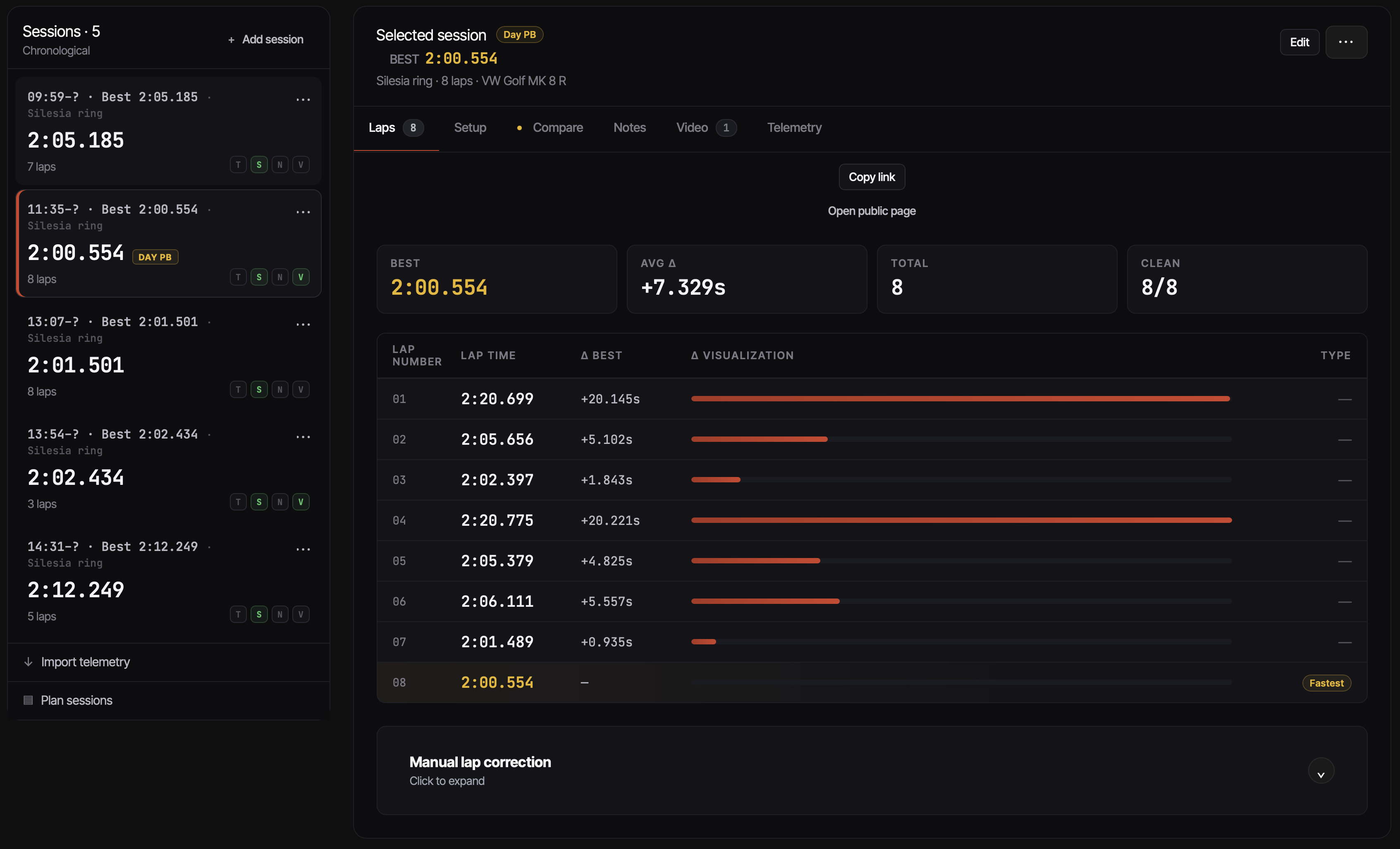
The file goes to /imports. ApexLog reads the CSV and rebuilds the day: it
detects the sessions, times every lap, picks the best lap per session, works out
the track from the GPS, computes the track length from the lap itself, and rolls
the mileage up against the car. A single-session file becomes one track day with
one session under it.
Because the Mini logs position and G-force, the in-app Telemetry tab has something to draw: the racing line on a satellite map, colour-graded by speed or by longitudinal-G, plus a speed trace, a longitudinal-G trace, and a pace-coloured lap strip that shows where each lap was quick or slow. This covers similar ground to RaceBox’s own session view — it’s not the reason to import. The difference is that here it sits attached to the setup and the season, not on its own. One thing to set expectations on: the raw gyro and lateral-G overlays aren’t surfaced in the UI yet — the channels come in from the CSV, but the visualization today is the racing line, speed and longitudinal-G.
Why keep it across the season
A single session is the easy part — the Mini already showed you your best lap in the paddock. The value shows up on visit five, or the following spring, when you want to line one day up against another.
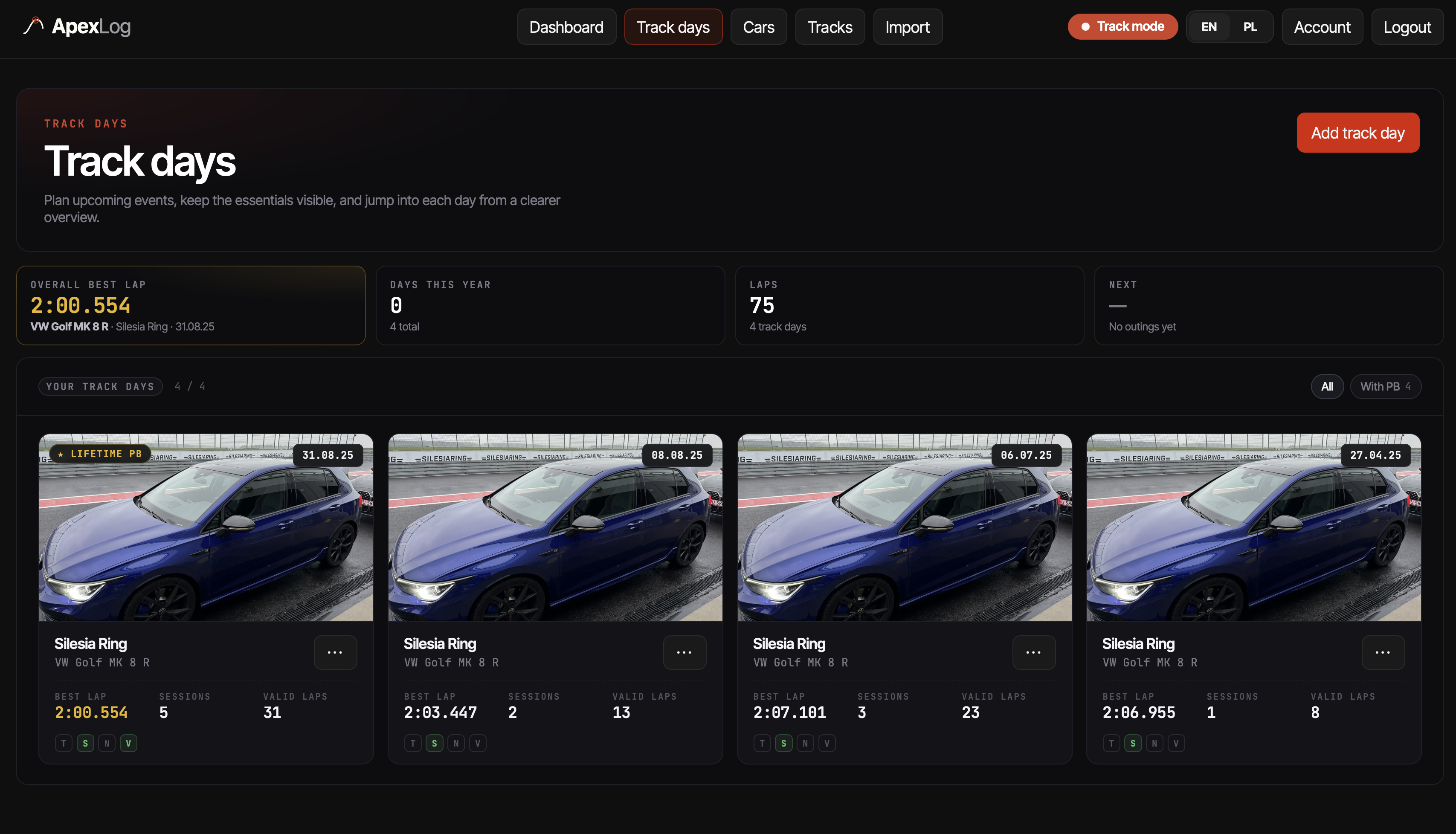
RaceBox’s cloud will list those days for you, and it’ll compare two of them lap for lap. What it won’t do is carry the physical state of the car alongside them. The setup details aren’t in the CSV — the Mini has no way to know whether those laps were on fresh semi-slicks or a worn-out set — and its vehicle tag is a name, not a record of tires, pressures, pads and alignment. So in ApexLog you enter the setup once after the import, and every imported lap attaches to it. Then the comparison you actually want becomes possible: your June day and your September day on the same circuit, best laps side by side, with the tire model, age, pressures and pads that produced each one sitting right there — and the pads’ lap count and cost-per-lap rolling up as you go.
What a logbook won’t do is tell you why you got faster. Cooler track, more familiarity, the new pads, finally braking later into the slow corner — that reasoning is still yours. What it does is keep the facts in one place so you have something to reason from.
RaceBox or phone GPS?
Worth one straight paragraph, because it’s the question people ask before they own either. A dedicated logger like the Mini gives you a better sample rate and a cleaner, more consistent GPS fix than a phone, which shows up as a tidier racing line and lap times you can trust to the hundredth. A phone running RaceChrono is cheaper and already in your pocket, and it’s genuinely good. The useful part for this post: whichever you record with, the file is what matters afterward, and ApexLog imports both — RaceBox CSV and RaceChrono exports land in the same season history, so the choice of logger doesn’t lock your data anywhere.
Try one file
If you’ve got a RaceBox CSV from last weekend, the fastest way to see whether a season-shaped view is worth your time is to drop one in and look.
Import your first RaceBox file into ApexLog →
The RaceBox import page covers the upload mechanics, and the logbook pillar is the longer take on what a track day logbook should capture in the first place. Free during beta — one file is enough to tell whether it fits how you keep your days.