
Reading OBD data from a track day: RPM, fuel and temperatures
How to record OBD-II channels alongside GPS in RaceChrono — what hardware works, which channels you get, and what a season logbook does with them after the import.
A GPS lap trace tells you where the car was and how fast it was moving. It tells you nothing about what the car itself was doing — how hard the engine was working, how hot the coolant got by session three, or how much fuel was left when you set your best lap. All of that is sitting on the OBD-II port, and RaceChrono can record it into the same session as your laps.
This post covers the setup end to end: what hardware to buy, how to get the channels into RaceChrono, what actually lands in the file, and what a season-shaped logbook does with the data after the session. It assumes you already record GPS laps with RaceChrono; if you’re still picking a lap timer, this is the wrong post.
What OBD adds on top of GPS
With a reader paired, RaceChrono records engine channels next to every GPS sample. The ones worth having at a track day:
- RPM — the trace that turns a speed graph into a gear-by-gear story.
- Throttle and accelerator position — where you were flat, where you lifted, and whether the two agree.
- Gear — on cars that report it.
- Coolant and intake temperature — how the car copes with back-to-back sessions on a hot day.
- Engine load — how hard the engine was actually working.
- Fuel level — the tank percentage over the session, which matters more than it sounds (more below).
- OBD speed — the car’s own speed reading, next to the GPS one.
One session, one file, laps and engine data together. That combination is the point — an RPM spike means little on its own, but an RPM trace pinned to a specific corner of a specific lap is something you can look at.
The hardware: an OBD-II reader over Bluetooth
RaceChrono talks to ELM327-class Bluetooth readers — the small dongles that plug into the OBD-II port under the dashboard. They range from a few euros to around a hundred, and at a track day the difference shows up as sample rate: cheap clones can be slow or drop out mid-session, while a quality reader (the OBDLink family is the usual recommendation in the RaceChrono community) polls noticeably faster and stays connected.
One mechanical detail worth knowing before you buy: the reader polls PIDs one at a time, in turn. Every extra channel you enable lowers the update rate of the others. Expect a handful of updates per second spread across your selected channels, not 25 Hz on everything — pick the channels you’ll actually look at.
The caveat: OBD coverage is per-car
The OBD-II standard defines the PIDs, but each manufacturer decides which ones the car exposes. RPM, coolant temperature and throttle are nearly universal; gear, fuel level and accelerator position are not. Before buying hardware for a specific channel, check what your car reports — a generic reader and a free OBD app will show you the list in five minutes.
And one channel people hope for that isn’t there: brake pressure is not on the generic OBD-II set. Some cars expose it through manufacturer-specific PIDs, most don’t. If braking data is what you’re after, that’s IMU/GPS territory, not OBD.
Recording: pair once, then forget it
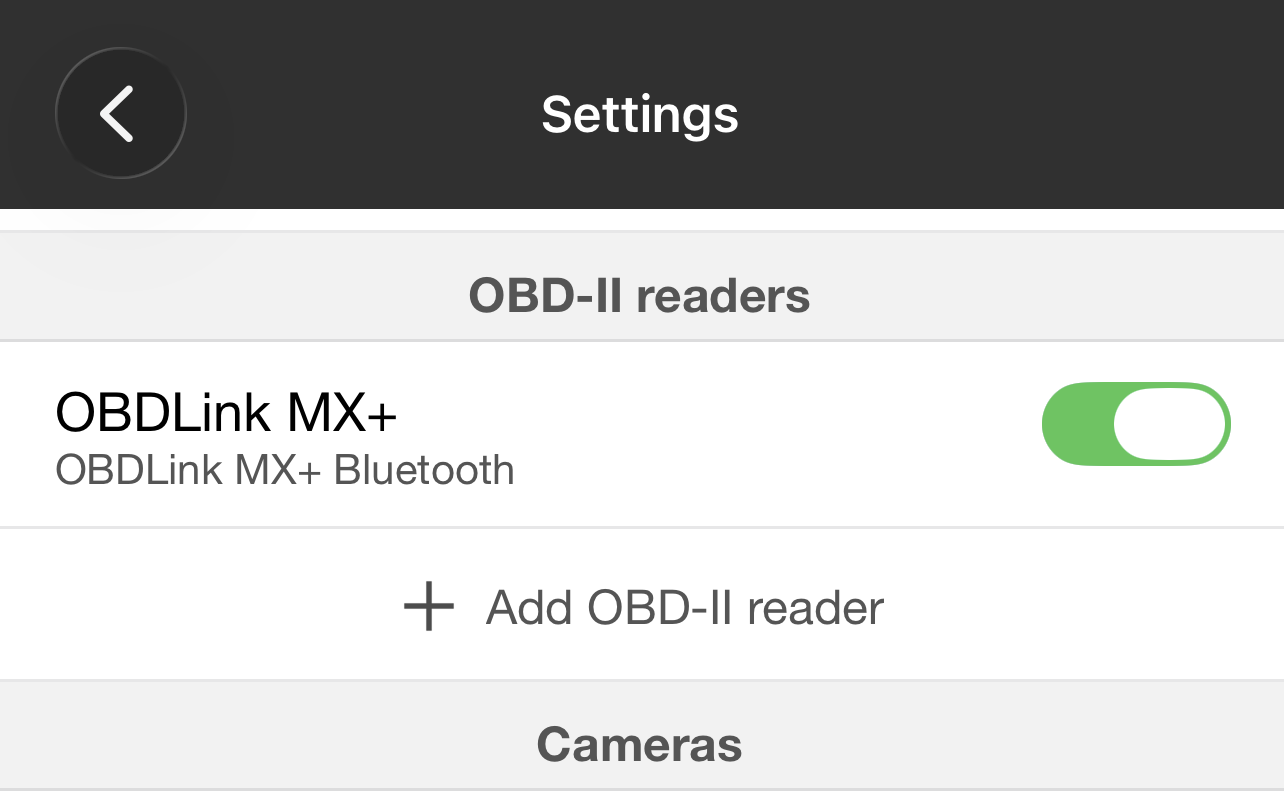
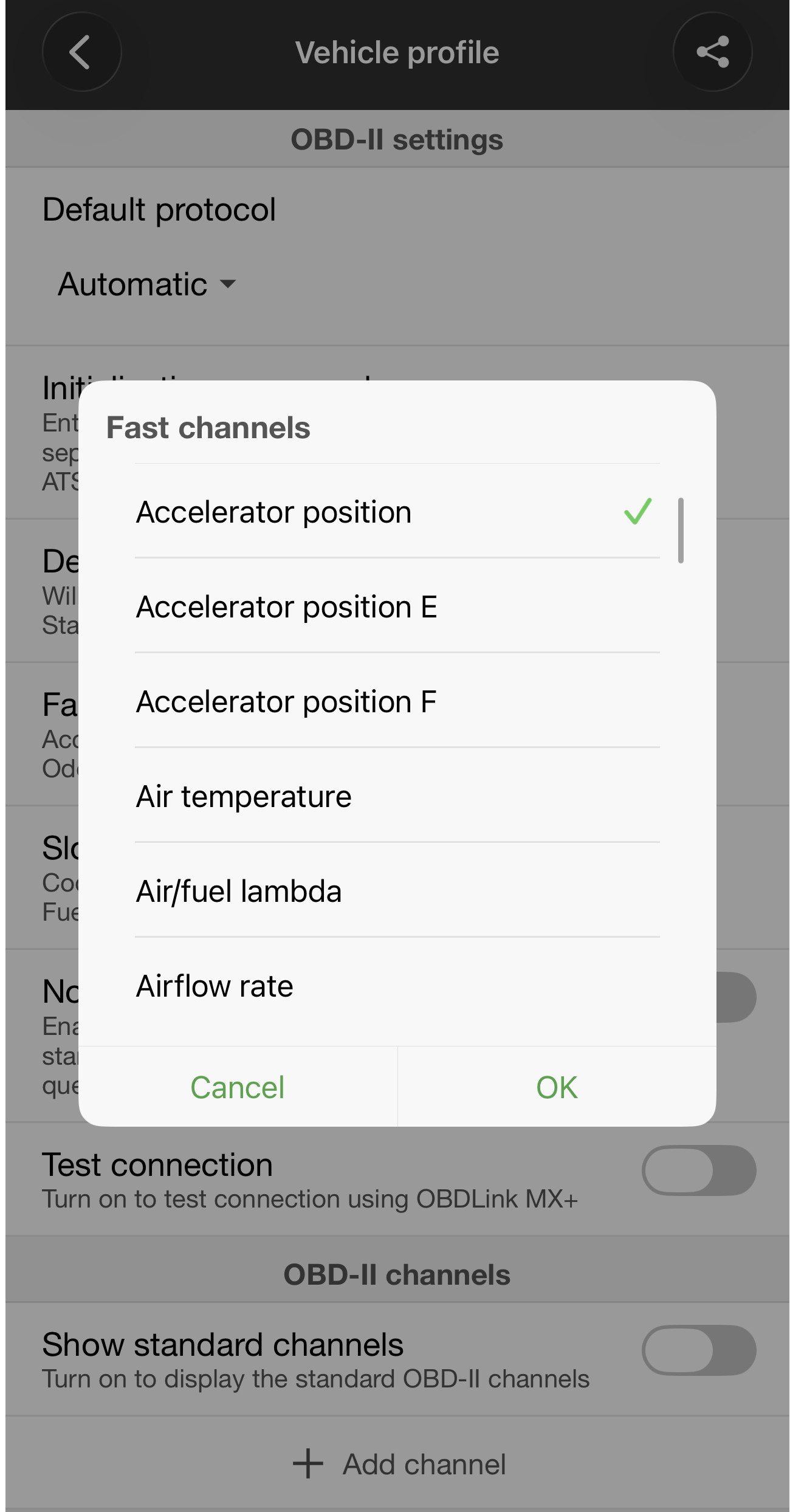
In RaceChrono, the reader is added as another device alongside your GPS source — pair it in the settings, select the channels you want, and from then on every session records engine data automatically. There’s no separate OBD recording to start; the channels ride along with the lap recording you already do.
RaceChrono handles the polling problem for you by splitting the selection into fast and slow channels: put the ones that change every corner (RPM, throttle, accelerator position) in the fast group, and the ones that drift over minutes (coolant, intake temperature, fuel level) in the slow group, and each gets an update rate that matches how quickly it actually moves.
The data ends up in both export formats. The .rcz session bundle carries the
OBD channels natively, and the CSV v3 export adds them as named columns next
to the GPS samples. Either file works for the import below — if you’re
choosing, the .rcz is one file with everything in it.
After the import: the channels on the map
Drop the file into ApexLog and the OBD channels are stored with the session, not discarded. I built ApexLog, so read the rest of this section as one option rather than the only one — but this is the part where the recording starts paying back.
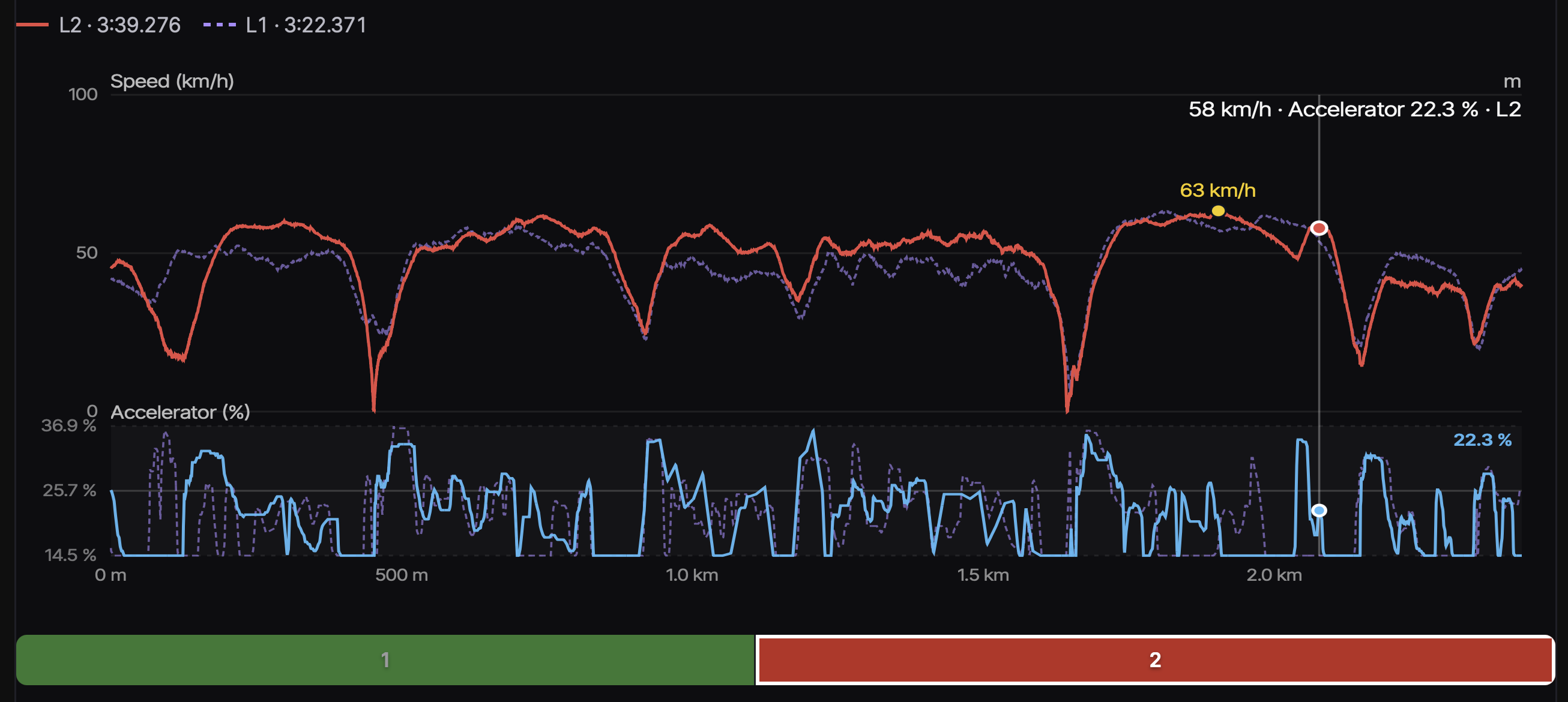
In the session’s Telemetry tab, the racing line on the satellite map can be colour-graded by any recorded OBD channel — RPM, throttle, coolant temperature, fuel level — with the trace charted underneath. The lap-compare view overlays the same channels for two laps, so the throttle trace sits directly under the speed delta between them. Where the default view answers “where was I fast,” the OBD view answers “what was the car doing there”: the throttle trace through the corner you’re unsure about, the coolant temperature climbing across a twenty-minute session, the gear the car reported on the back straight.
What the logbook deliberately doesn’t do is tell you why — it won’t claim the lower fuel load made you faster or the intake temps cost you a tenth. It surfaces what was recorded; the reasoning stays yours.
The fuel payoff: a setup field that fills itself
Here’s the small, concrete win that makes the OBD setup worth it even if you never open a temperature trace.
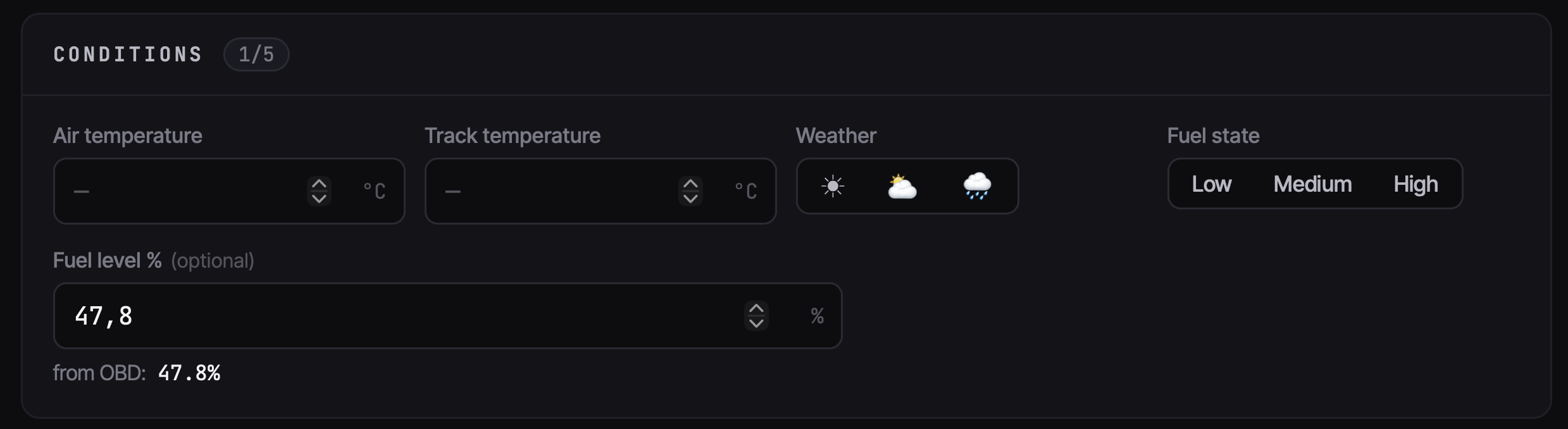
A setup card in a logbook has a fuel level field, and it’s exactly the kind of
field nobody fills in from memory three days later. If your import carries the
fuel_level channel, ApexLog reads the first valid sample of the session —
the tank as you rolled out — and suggests it on the setup card for you. The
number you’d have guessed at is already there, from the car itself.
That’s the pattern OBD data is good for across a season: facts about the car’s state that evaporate by Tuesday, captured at the moment they were true. Fuel at roll-out, temperatures by session three, where you were flat and where you lifted — next to the tires, pressures and pads from the same day, in the same track day logbook.
Try it with one session
If you already have a session recorded with an OBD reader — or you set one up for your next day — the import takes a minute and the channels show up automatically:
Import a RaceChrono session with OBD data →
The RaceChrono import page covers the upload mechanics
for both .rcz and CSV v3. Free during beta — one file with an RPM trace in
it is enough to see whether engine data earns its place in your logbook.