
Talk to your onboard: turning what you say on track into lap notes
ApexLog's Notes from audio finds the speech in a GoPro file, transcribes it in the EU and lists what you said at the moment you said it. You review, then save. Here is how it works and where it falls short.
On track you say things out loud. “Rear stepped out.” “Brakes fading.” “Too early on the brakes here.” It’s the most honest feedback a session produces, and it’s gone by the evening, because nobody types notes in a paddock with cold hands and a 20-minute turnaround to the next session.
A GoPro in the cabin records those sentences anyway, next to the engine. The sound is already on the file. What was missing was a way to get the sentences back out of it, each one attached to the place on the lap where it was said. This post covers how that works in ApexLog — I built it, so read the tool-specific parts with that in mind. The habit applies to anyone with a camera that records audio: say it out loud, it’s on the file.
What it does
The feature is called Notes from audio. With a GoPro file that has sound, already synced to the session, it does this:
- Finds the speech. Your browser reads the audio of the file and detects where someone is talking, so stretches of plain engine noise are skipped.
- Transcribes only those stretches. The speech clips are sent for transcription, in the EU. Nothing else leaves your computer.
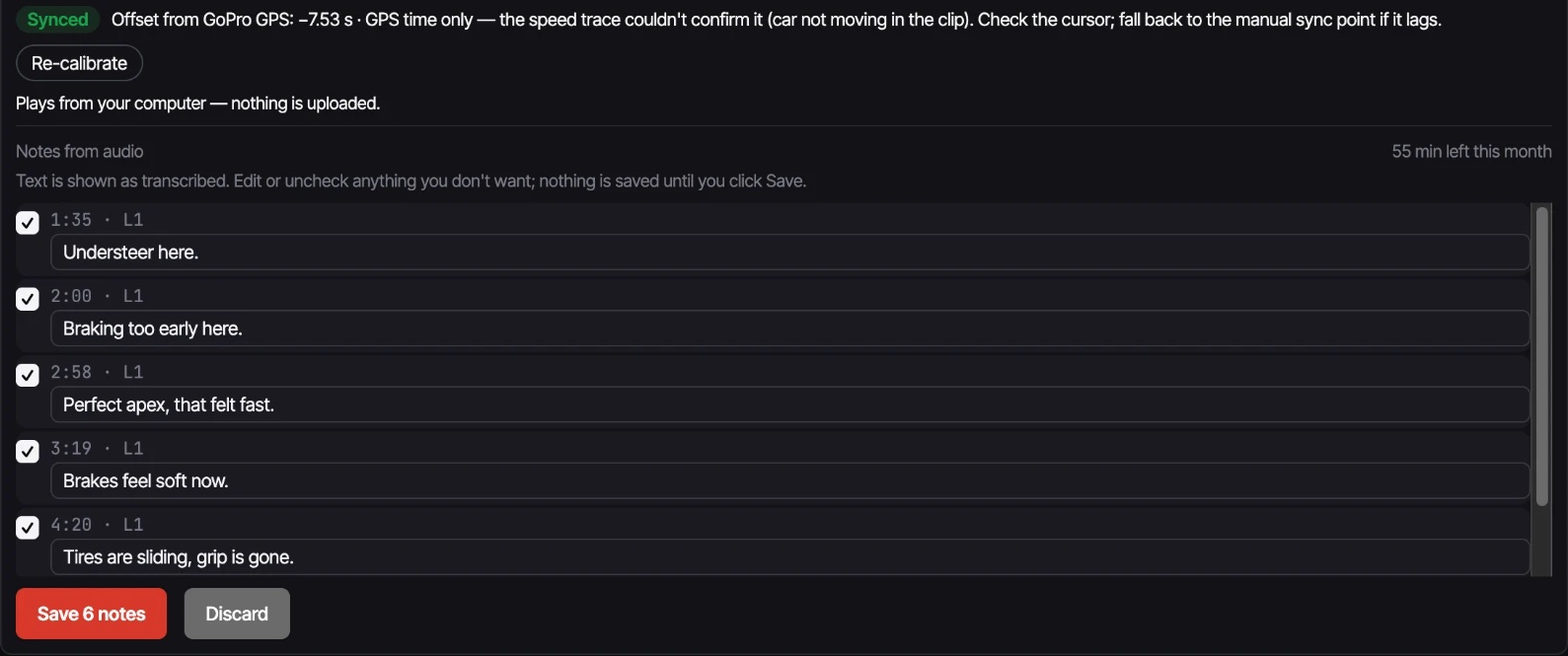
- Lists what you said, when you said it. Each utterance appears as a row with its time in the session and its lap. The same sync that places the video on the telemetry places the sentence, so a note is exactly as well placed as the sync is.
- Waits for you. Every row starts checked and editable, with the text as transcribed. Uncheck a row, fix a word. Nothing is saved until you click Save N notes.
Where the notes go
Saved rows become ordinary notes on the session, the same kind you would type by hand. So they show up everywhere notes already do:
- Chart markers on the telemetry traces, and the note list under them.
- The video. Each note keeps its moment in the session. With the synced video open, YouTube or the file from your disk, one click on a note in the list or on its marker jumps the video to that moment. With no video open, the click puts the cursor on that spot of the trace and the map.
- Captions in the overlay render: you pick which notes appear in the video as captions. Nothing is picked by default.
- The AI assistant. A connected assistant reads the session’s notes and can tell a typed note from one transcribed from the video, so it can treat “what I said on lap 4” as spoken at the time rather than written up later. The setup is in the post on the AI race engineer.
- Your data export, with the same typed or transcribed marker.
Where you can run it
Two places, same engine:
- In the overlay render panel, over the span the render would use: the whole file or the laps you selected.
- In the local player on the Telemetry tab, when you play a file from your disk. A Notes from audio button in the player head opens the review under the video, and clicking a row jumps the player to that moment. It covers the chapter that is playing, and the review stays open when playback rolls over to the next chapter. How the local player works is in the post on watching GoPro footage from the SD card.
Both share the same monthly minutes.
Languages
You don’t have to talk to your car in the app’s language. A picker next to the button offers 97 spoken languages: Czech, Dutch and Swedish as well as English, Polish and the rest. It’s searchable: type the language’s name in your own language, its own name, or its code. Your app language and your last pick sit at the top. There’s no automatic detection, so you tell it which language you spoke.
Mute my comments
There’s a side effect I wanted for myself. If you talk on track, your comments are on the video, and not every sentence belongs on the version you post.
When you render an overlay video from a file that has audio, Mute my comments (on by default) silences the spoken comments in the rendered video, with short fades at the edges. It works from the saved voice notes, so it also works on a later render, after a reload, without transcribing again. Deleting a note stops it from muting that speech, and typed notes are never muted.
Two limits. It needs a browser that can re-encode the audio, otherwise the toggle isn’t offered. And voice notes saved before this existed don’t carry the information needed to mute them. Your original file isn’t touched; the mute exists only in the file the render produces.
What leaves your computer
This is the part to read before you try it.
- The audio is cut in your browser. Only the stretches where speech was detected are sent. The rest of the file stays on your disk.
- Transcription happens in the EU, on Azure AI Foundry, which is named as a processor in the privacy policy.
- The audio is not stored. It’s processed, not kept. The transcript isn’t stored either unless you click save.
- The quota is 60 minutes per user per month, counted on the speech only, not on the length of the file. If no speech is found, nothing is sent and nothing is counted. The panel shows how many minutes you have left.
What it won’t do
- It can mishear. A speech model gets words wrong, especially short and technical ones. That’s why every row is editable and nothing is saved until you’ve seen the list. I haven’t measured how accurate it is on track audio and I’m not putting a number on it. Check the rows against what you remember.
- Noise matters. Engine and wind at speed are the hard case. The speech-detection step exists so the model isn’t asked to transcribe noise, but a quiet comment under a loud engine can be missed.
- It needs a file with sound. Footage with the audio off, or a YouTube link, has nothing to transcribe. It works on the original file from the camera, picked from your disk.
- Desktop only. It needs a desktop browser and isn’t offered on phones.
- It doesn’t tell who is speaking. If a passenger talks, that’s transcribed too.
- It transcribes; it doesn’t summarize. The text is what was said.
Try it
You need a session with telemetry and a GoPro file of the same stint, synced. Then:
- Open the session’s Telemetry tab, play the file from your disk and click Notes from audio, or open Overlay video.
- Pick the spoken language and run it.
- Read the list, fix what’s wrong, uncheck what you don’t want, and save.
- Click any saved note to jump the video to the moment you said it.
Try Notes from audio on one of your sessions →
Free during beta. The sync step it builds on is in the GoPro overlay post, and the notes end up next to the rest of the day in the track day logbook.